> ## Documentation Index
> Fetch the complete documentation index at: https://docs.termique.app/llms.txt
> Use this file to discover all available pages before exploring further.
# Quickstart
> Install Termique and connect to your first SSH server in under 5 minutes.
This guide walks you through installing Termique, setting up your master password, and connecting to your first SSH host.
## Prerequisites
* macOS 12+, Windows 10+, or a Linux distribution with a desktop environment
* An SSH server you can connect to (hostname, port, username, and password or key)
## Install
Download the latest release for your platform:
| Platform | Link |
| -------- | ---------------------------------------------------------------------- |
| macOS | [termique.app/download/macos](https://termique.app/download/macos) |
| Windows | [termique.app/download/windows](https://termique.app/download/windows) |
| Linux | [termique.app/download/linux](https://termique.app/download/linux) |
Open Termique and click **Sign in with browser**. This opens your default browser to complete sign-in, then returns you to the app.
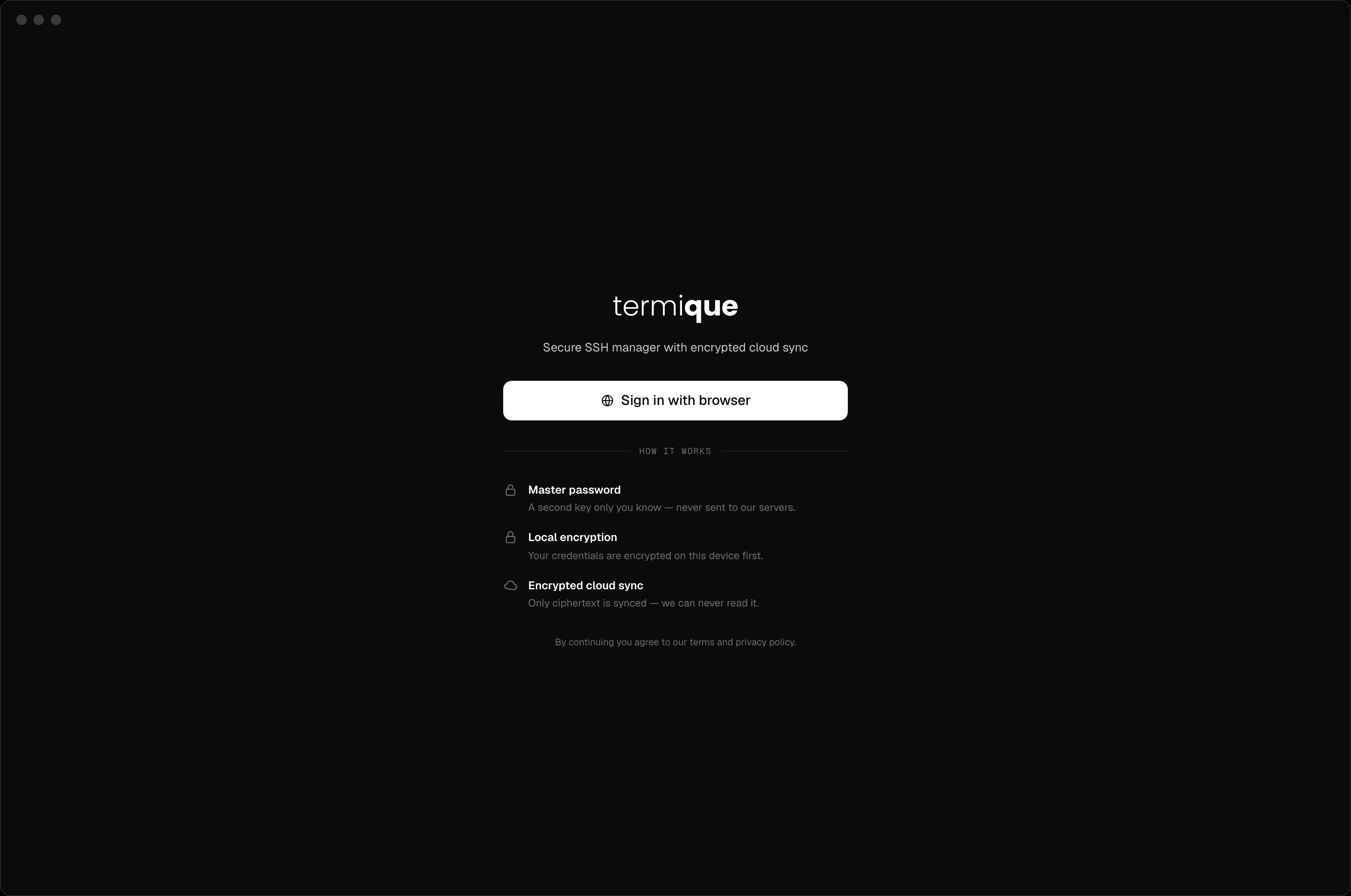 On first launch, a short setup wizard walks you through:
1. **Welcome**: a quick intro to Termique.
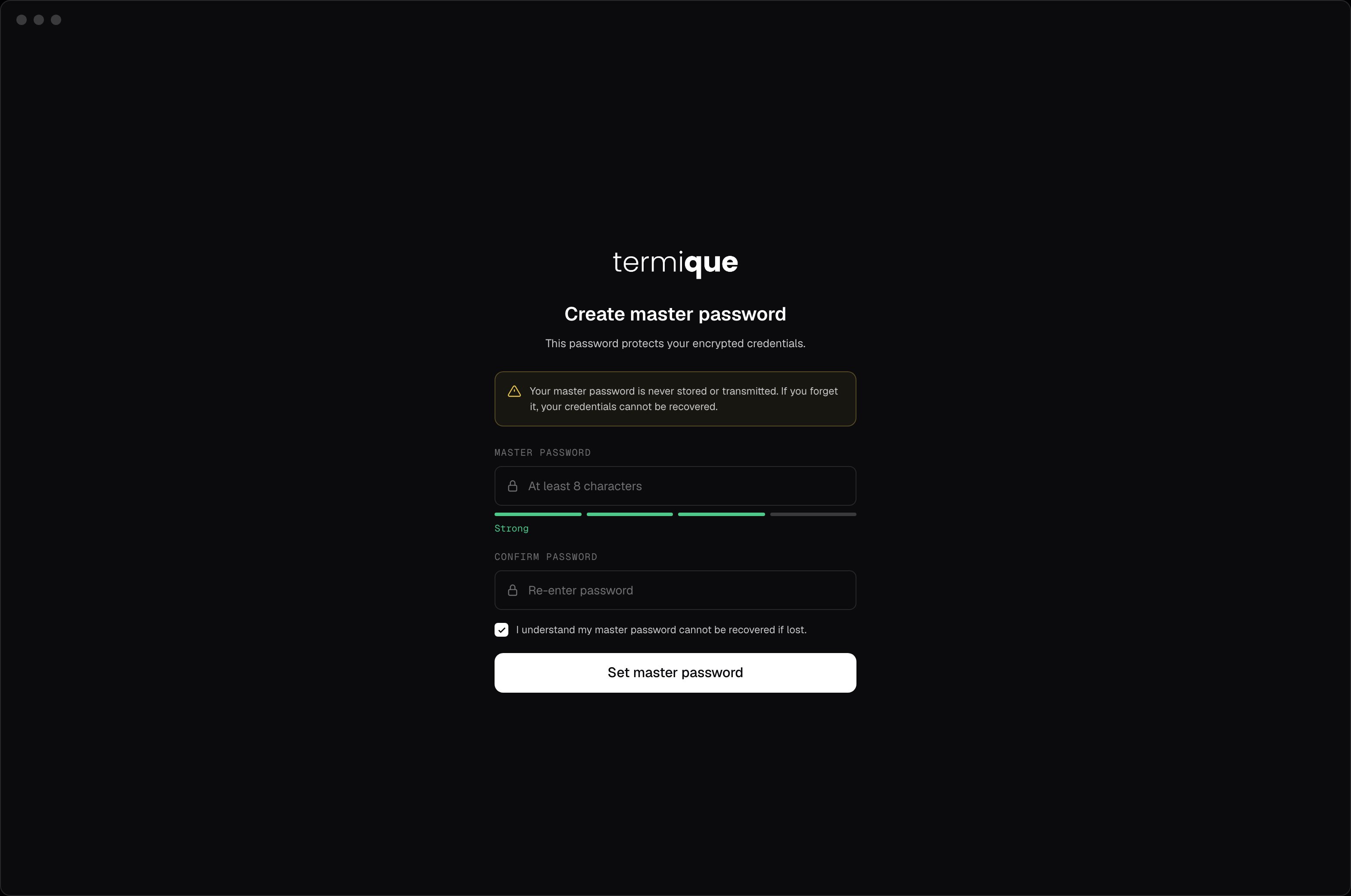
2. **Master password**: enter a strong master password. This password encrypts your Data Encryption Key (DEK), which in turn encrypts every credential. There is no password recovery. If you lose it, your credentials cannot be decrypted. Store it in a password manager.
3. **Theme**: pick Light, Dark, or System. You can change this later in Settings.
4. **Plans**: compare Free and Pro. Everyone starts on Free; upgrade now or later from Settings.
On first launch, a short setup wizard walks you through:
1. **Welcome**: a quick intro to Termique.
2. **Master password**: enter a strong master password. This password encrypts your Data Encryption Key (DEK), which in turn encrypts every credential. There is no password recovery. If you lose it, your credentials cannot be decrypted. Store it in a password manager.
3. **Theme**: pick Light, Dark, or System. You can change this later in Settings.
4. **Plans**: compare Free and Pro. Everyone starts on Free; upgrade now or later from Settings.
 You'll land on the **Dashboard**. Click **Add Host**.
Fill in:
* **Label**: a friendly name (e.g. `web-prod-01`)
* **Host**: the hostname or IP address
* **Port**: SSH port (default `22`)
* **Username**: the SSH user
* **Auth type**: `password` or `key`
* **Credential**: the password or private key
Click **Save**. The credential is encrypted and stored locally.
Click the host in the sidebar. Termique opens a terminal session connected to your server.
You can open multiple sessions in tabs, resize the terminal, and disconnect from the session menu.
## Next steps
| If you want to | See |
| ------------------------------------------ | --------------------------- |
| See an overview of your hosts and activity | [Dashboard](/dashboard) |
| Add and organize more hosts | [Hosts](/hosts) |
| Organize hosts into groups | [Groups](/groups) |
| Save and share commands | [Snippets](/snippets) |
| Connect from your phone | [Mobile companion](/mobile) |
Need help? Contact support at [support@termique.app](mailto:support@termique.app).
You'll land on the **Dashboard**. Click **Add Host**.
Fill in:
* **Label**: a friendly name (e.g. `web-prod-01`)
* **Host**: the hostname or IP address
* **Port**: SSH port (default `22`)
* **Username**: the SSH user
* **Auth type**: `password` or `key`
* **Credential**: the password or private key
Click **Save**. The credential is encrypted and stored locally.
Click the host in the sidebar. Termique opens a terminal session connected to your server.
You can open multiple sessions in tabs, resize the terminal, and disconnect from the session menu.
## Next steps
| If you want to | See |
| ------------------------------------------ | --------------------------- |
| See an overview of your hosts and activity | [Dashboard](/dashboard) |
| Add and organize more hosts | [Hosts](/hosts) |
| Organize hosts into groups | [Groups](/groups) |
| Save and share commands | [Snippets](/snippets) |
| Connect from your phone | [Mobile companion](/mobile) |
Need help? Contact support at [support@termique.app](mailto:support@termique.app).