> ## Documentation Index
> Fetch the complete documentation index at: https://docs.termique.app/llms.txt
> Use this file to discover all available pages before exploring further.
# Settings
> Manage your account, appearance, shortcuts, and updates.
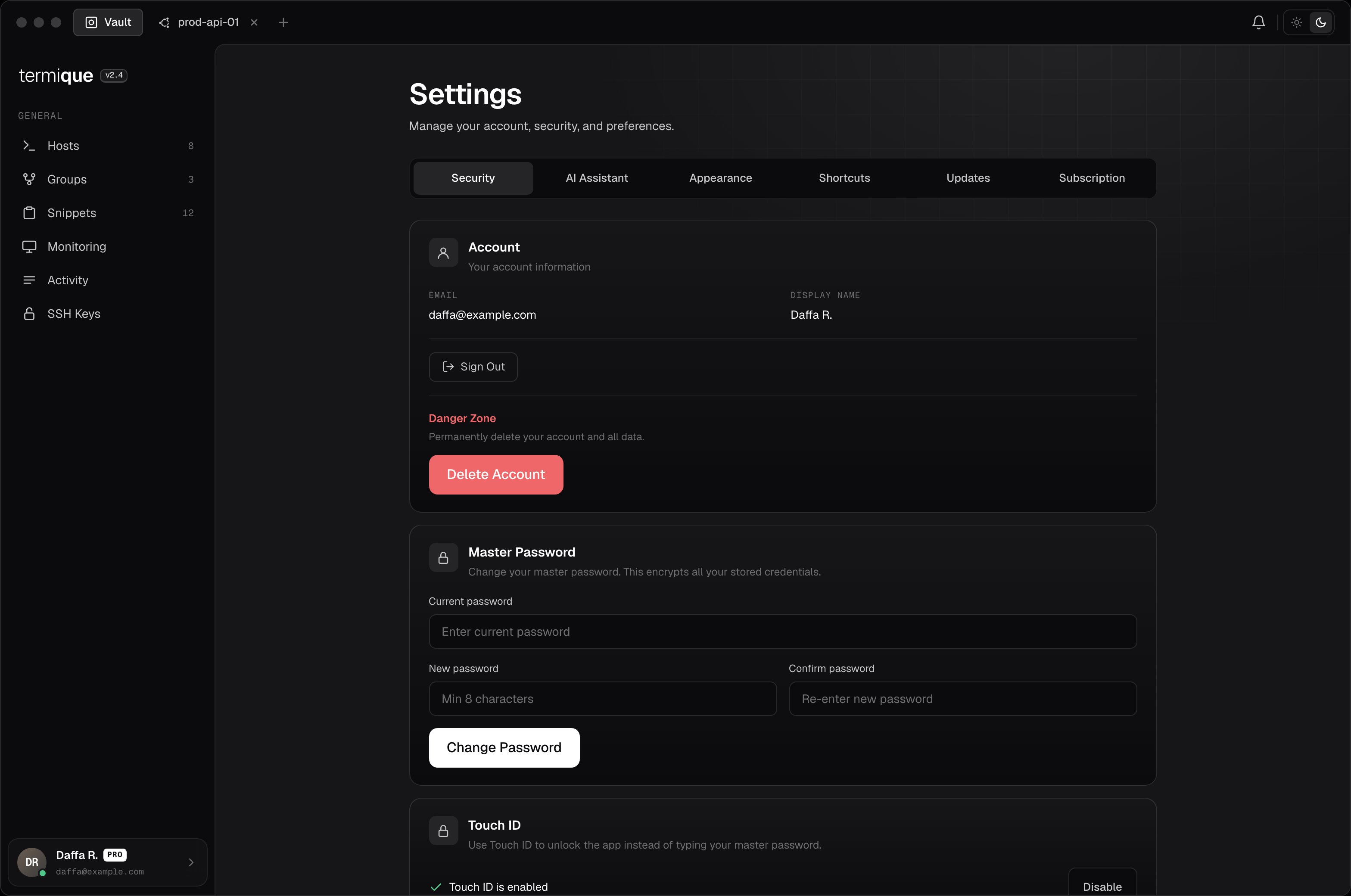
Settings is organized into tabs: **Security**, **AI Assistant**, **Appearance**, **Shortcuts**, **Updates**, and **Subscription**. Security, AI Assistant, and Subscription have their own pages. See [Security & encryption](/security), [AI assistant](/ai-assistant), and [Plans & billing](/plans). This page covers the rest.
 ## Account
The **Security** tab also holds your account info and sign-in.
* **Sign in**: Termique uses Google, GitHub, or Apple to sign in. There is no separate Termique password for your account, only the master password, which is local to your device and never sent anywhere.
* **Email / display name**: shown read-only, taken from your sign-in provider.
* **Sign out**: ends your session on this device. Local data stays until you sign in again or clear it.
**Delete Account** permanently removes all hosts, credentials, groups, snippets, share invites, command logs, AI memories, your profile, and your sign-in account. This cannot be undone. Type your email to confirm.
## Appearance
Open **Settings → Appearance** to switch between **Light**, **Dark**, and **System** theme. System follows your OS setting automatically.
## Shortcuts
Open **Settings → Shortcuts** to view and customize keyboard shortcuts. Click a shortcut to record a new key combination.
If a combination is already assigned to another action, Termique flags the conflict and lets you reassign it.
## Updates
Open **Settings → Updates** to check your current version and check for a new one.
1. Click **Check for Updates**.
2. If one is available, click **Download Update**.
3. Once downloaded, click **Restart & Install** to apply it.
Updates are not installed automatically. You control when to download and restart.
## Account
The **Security** tab also holds your account info and sign-in.
* **Sign in**: Termique uses Google, GitHub, or Apple to sign in. There is no separate Termique password for your account, only the master password, which is local to your device and never sent anywhere.
* **Email / display name**: shown read-only, taken from your sign-in provider.
* **Sign out**: ends your session on this device. Local data stays until you sign in again or clear it.
**Delete Account** permanently removes all hosts, credentials, groups, snippets, share invites, command logs, AI memories, your profile, and your sign-in account. This cannot be undone. Type your email to confirm.
## Appearance
Open **Settings → Appearance** to switch between **Light**, **Dark**, and **System** theme. System follows your OS setting automatically.
## Shortcuts
Open **Settings → Shortcuts** to view and customize keyboard shortcuts. Click a shortcut to record a new key combination.
If a combination is already assigned to another action, Termique flags the conflict and lets you reassign it.
## Updates
Open **Settings → Updates** to check your current version and check for a new one.
1. Click **Check for Updates**.
2. If one is available, click **Download Update**.
3. Once downloaded, click **Restart & Install** to apply it.
Updates are not installed automatically. You control when to download and restart.