> ## Documentation Index
> Fetch the complete documentation index at: https://docs.termique.app/llms.txt
> Use this file to discover all available pages before exploring further.
# Terminal
> Work with live SSH sessions in the Termique terminal.
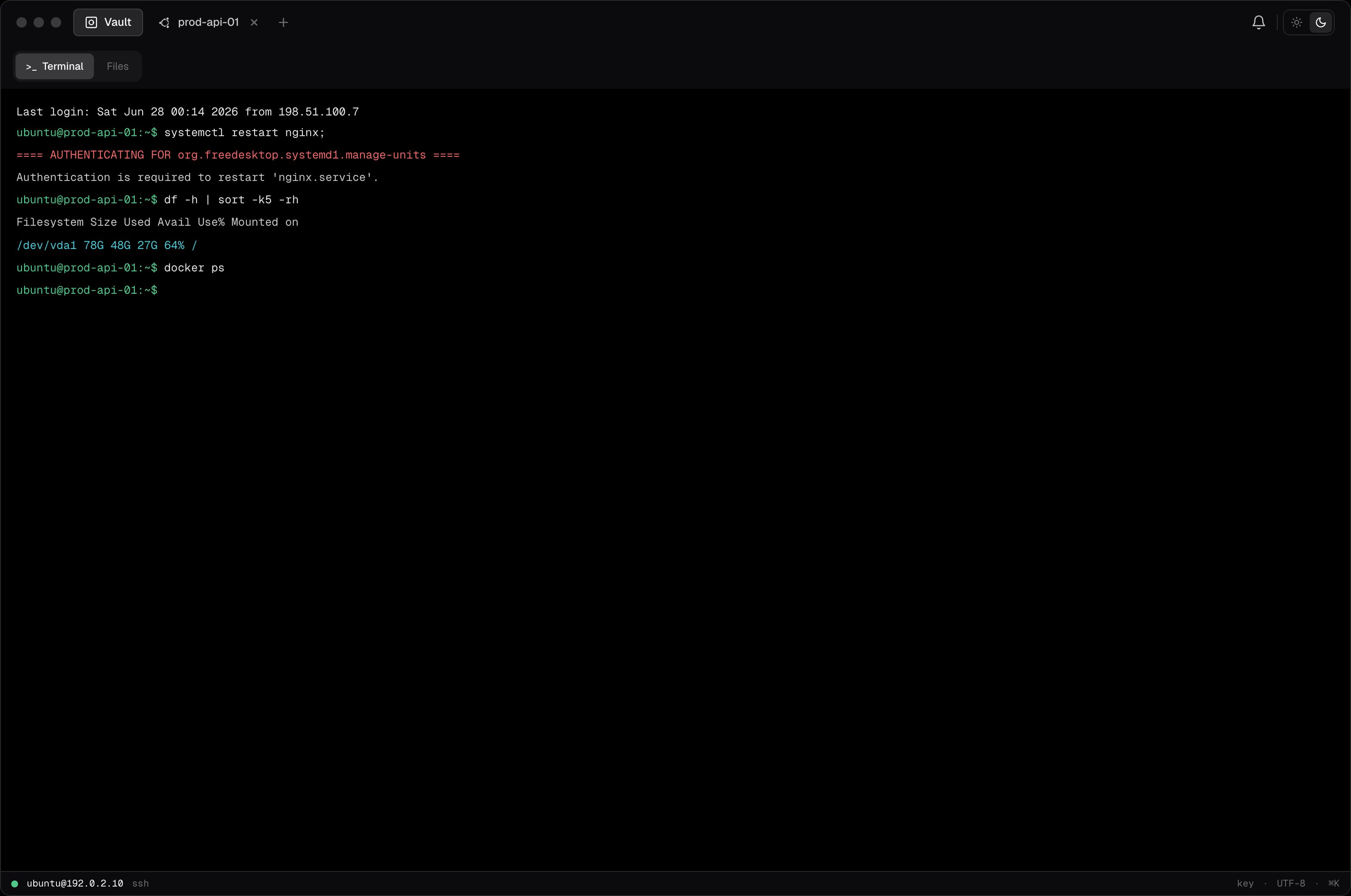
When you connect to a host, Termique opens a terminal session: a full PTY shell with an SSH connection to your server.
## Open a session
Click a host in the sidebar. The terminal opens in the main panel. Each session runs in its own tab.
 ## Multiple sessions
Click another host while a session is open. A new tab appears at the top. Switch between tabs by clicking them or using the keyboard shortcut.
Sessions are independent. Each maintains its own SSH connection and PTY state.
## Resize
Drag the terminal panel edges or resize the app window. Termique sends a `SIGWINCH` signal to the remote PTY so the shell reflects the new dimensions.
## Copy and paste
* **Copy**: select text with the mouse. The selection is copied automatically.
* **Paste**: right-click and select **Paste**, or use the OS paste shortcut (`Cmd+V` / `Ctrl+Shift+V`).
## Disconnect
Click **Disconnect** in the session tab menu, or close the tab. This sends a clean SSH session close to the server. The host entry is not deleted.
## Session status
The tab label shows the host label and a status indicator:
* Connected: active SSH session
* Disconnected: session closed or dropped
* Reconnecting: Termique is attempting to reconnect after a network interruption
## Command logging
If command logging is enabled on a host, keystrokes and commands are recorded and pushed to the API backend as an audit log. See [Command logs](/command-logs).
## Multiple sessions
Click another host while a session is open. A new tab appears at the top. Switch between tabs by clicking them or using the keyboard shortcut.
Sessions are independent. Each maintains its own SSH connection and PTY state.
## Resize
Drag the terminal panel edges or resize the app window. Termique sends a `SIGWINCH` signal to the remote PTY so the shell reflects the new dimensions.
## Copy and paste
* **Copy**: select text with the mouse. The selection is copied automatically.
* **Paste**: right-click and select **Paste**, or use the OS paste shortcut (`Cmd+V` / `Ctrl+Shift+V`).
## Disconnect
Click **Disconnect** in the session tab menu, or close the tab. This sends a clean SSH session close to the server. The host entry is not deleted.
## Session status
The tab label shows the host label and a status indicator:
* Connected: active SSH session
* Disconnected: session closed or dropped
* Reconnecting: Termique is attempting to reconnect after a network interruption
## Command logging
If command logging is enabled on a host, keystrokes and commands are recorded and pushed to the API backend as an audit log. See [Command logs](/command-logs).