

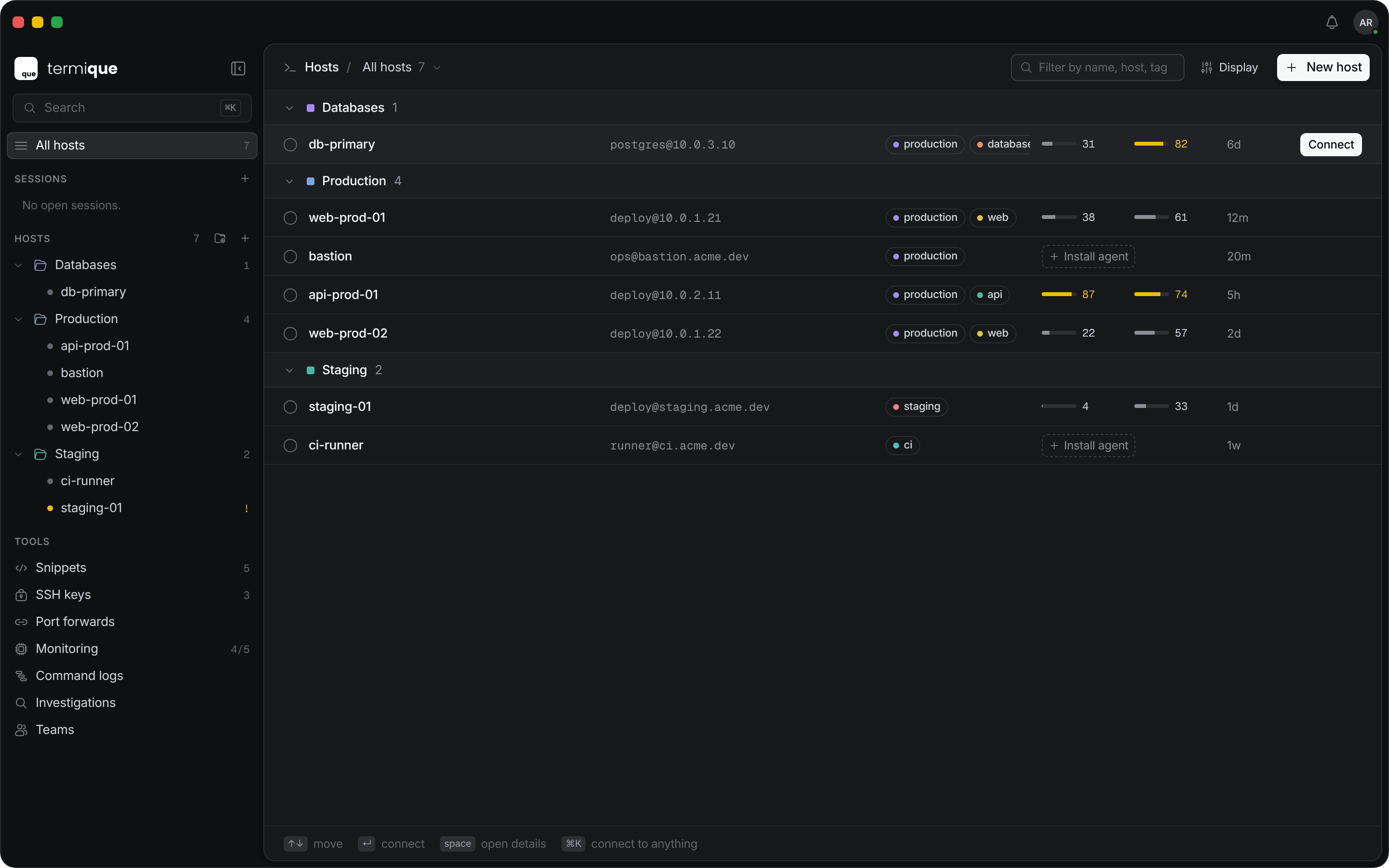
Sidebar
The sidebar holds your open sessions, your hosts, and the tools. From top to bottom:- Search: opens the command palette.
- All hosts: opens the Hosts page. The number is your host count.
- Sessions: your open terminal sessions and investigations. Click + to open a local shell. Hover a session and click the close button to end it.
- Hosts: your groups shown as folders, followed by hosts that are in no group. Click a folder to open the group, or click a host to open its page. Use the buttons next to the heading to add a New group or a New host.
- Tools: Snippets, SSH keys, Port forwards, Monitoring, Command logs, Investigations, and Teams. On Free, Command logs carries a Pro badge and opens an upgrade prompt.
A link icon marks a host shared with you. A monitor icon marks a host kept only on this computer.
To collapse the sidebar to an icon rail, click Hide sidebar next to the logo. Click Show sidebar to expand it again.
Top bar
The top bar shows:- Sync status: whether your data is synced. If sync fails, click Retry.
- Notifications: pending share invites. A red dot means an invite is waiting. Accept or decline it from the panel.
- Account menu: your avatar. It shows your plan (Free or Pro) and holds a light and dark Theme switch, Settings, About, Report bug, Lock screen, and Sign out.
Command palette
Press⌘K on macOS or Ctrl+K on Windows and Linux, or click Search in the sidebar. The palette searches hosts, sessions, pages, actions, and keyboard shortcuts. Select a host to connect to it.