

Install the agent
- Open a host’s detail view and find the Monitoring section.
- Click Generate token.
- Review what the agent collects, then click Agree & continue. Termique generates a one-time install command.
- Run the command on your server:
- Click Run on
<host>to execute it automatically over an open SSH session, or - Copy the command and run it manually over your own connection.
- Click Run on
The agent token is shown once. Expand Manual setup to show the token before closing the dialog if you need it, or generate a new one later.
What the agent collects
- CPU, RAM, and disk usage, every 30 seconds.
- Nothing else: no file contents, command output, or credentials.
- The agent only sends data outward. It never accepts inbound connections.
~/.config/termique-agent/config.toml (chmod 600) and registers a systemd service.
Config file
Most settings are covered elsewhere in this page and set through the app. To editconfig.toml directly, for example on a server you manage over a plain SSH session:
After editing, restart the agent to apply changes:
Security events
Optional, off by default. When enabled, the agent watches for a fixed set of security-relevant patterns and reports them as structured events, never raw log contents:- Failed and successful SSH logins.
fail2banbans and unbans, iffail2banis installed.- HTTP error-rate spikes: many 4xx/5xx responses from one IP within a minute.
- HTTP path-targeted brute force: many requests to the same URL from one IP within a minute, regardless of response status. This catches login-form brute force, which usually returns
200for every attempt rather than an error.
Enable it
Turn on Enable security event capture when generating the install command. To also detect HTTP brute force, set Reverse-proxy log path to your web server’s access log, for example/var/log/nginx/access.log.
On an agent that’s already installed, add the fields directly to config.toml instead: see Config file above.
Retention
Captured events are batched and sent every 2 minutes. Events are kept for 14 days on Free, 90 days on Pro.View metrics
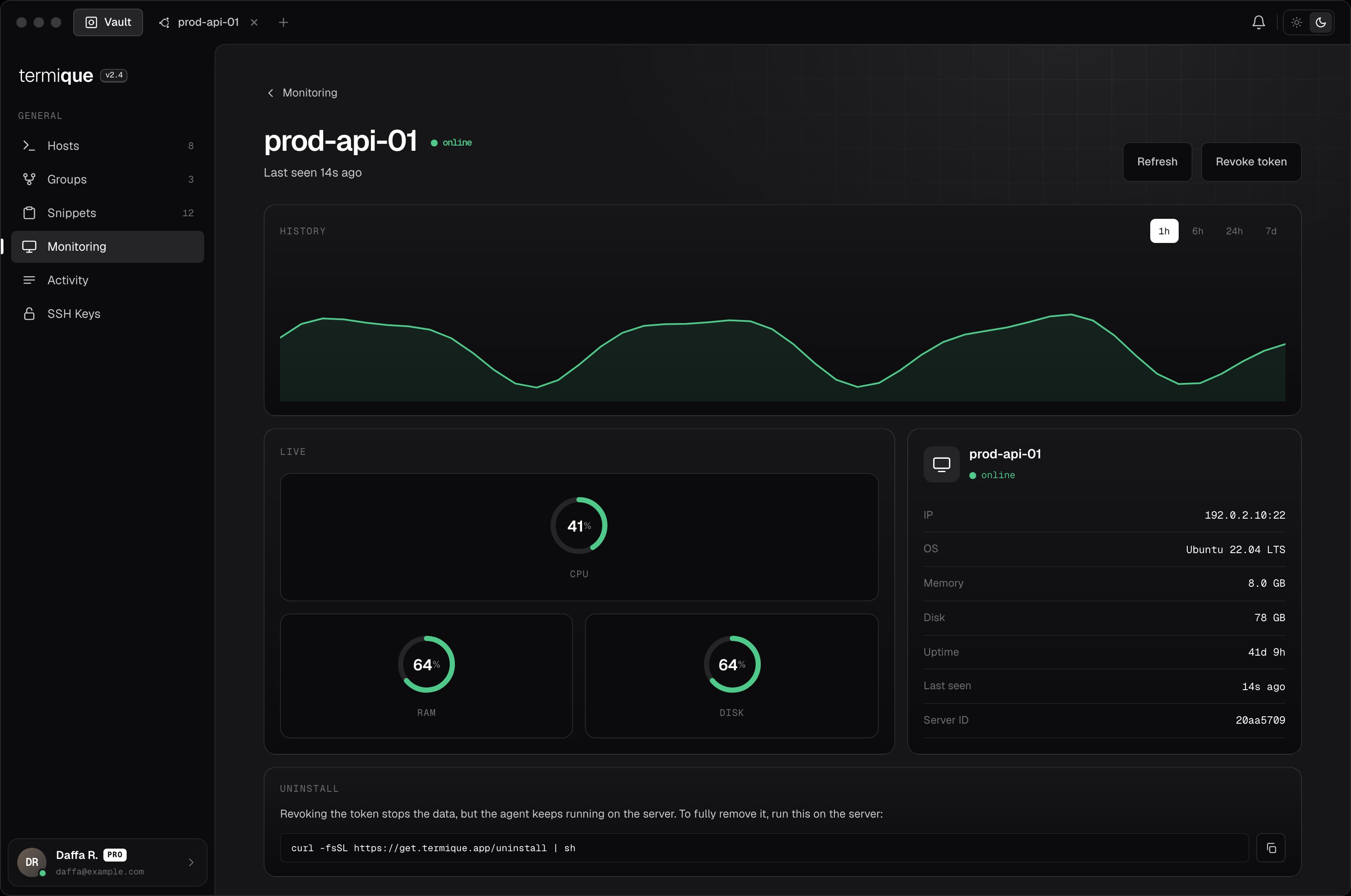
- Host detail: the Monitoring section on a host shows live CPU/RAM/disk tiles, color-coded (green under 70%, amber 70–89%, red 90%+).
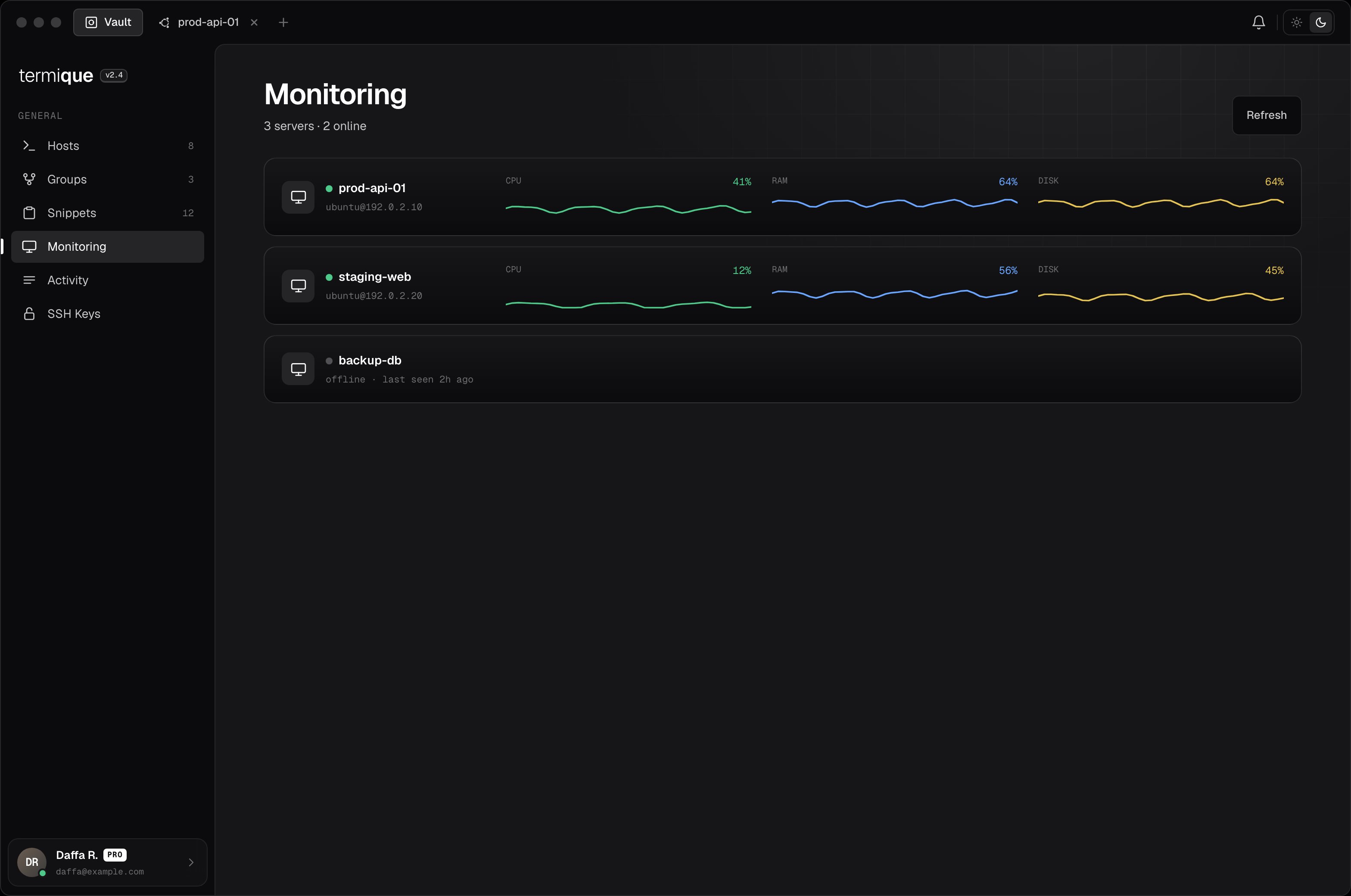
- Monitoring page: lists every paired server, online servers first, each with a one-hour trend sparkline per metric. Click a server to see its full metrics history.
Alert rules
Add an alert rule to get notified when a server crosses a threshold:
Each server can have up to 20 alert rules. Manage rules from the host’s Monitoring section on desktop, or from a paired server’s Alerts screen on mobile.
Notifications
Desktop shows alerts only while Termique is running. The mobile app receives push notifications for alerts even when the desktop app is closed. Tapping one opens the alert rules screen for that server.Background push notifications (alerts delivered while the desktop app is closed) require a Pro subscription.
Automatic updates
The agent checks for a new version once a day and updates only if one is available. If it’s already on the latest version, nothing happens: no reinstall, no restart. If an update fails to start correctly, the agent restores the previous version and restarts automatically. No manual recovery is needed. To skip automatic updates:- At install time, set
TERMIQUE_AUTO_UPDATE=falsebefore running the install command. - On an agent that’s already installed, add
auto_update = falseto~/.config/termique-agent/config.toml. This takes effect on the next daily check, no restart required.
Opting out means the agent stays on its currently installed version until you update it yourself by reinstalling.
Revoke or reinstall
-
Revoke: stops the agent from reporting within 30 seconds. The agent keeps running on the server until you remove it. Uninstall with:
- Reinstall: revokes the current token and generates a new one, skipping the terms review since you’ve already agreed once.